
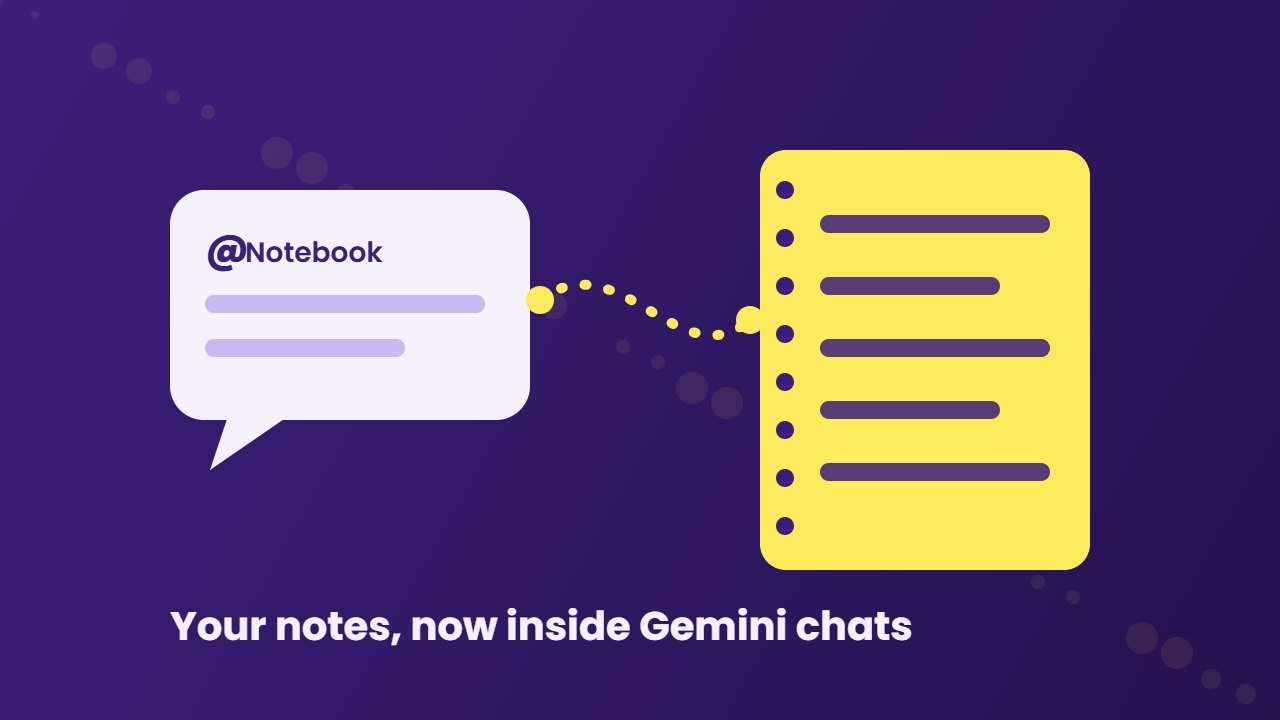
Google has given the Gemini app a new power. Gemini Notebook, the research tool that used to be called NotebookLM, now works as a connected app inside Gemini chats. As a result, Gemini can create notebooks, add sources and answer questions from your notes without you leaving the chat.
There is one catch. Google switched this connection on by default for most people, so many users have it running without ever choosing it. In this guide, you will learn what the Gemini Notebook connected app does, how to use it well and how to turn it off if you prefer.
Quick answer: In October 2026, Google made Gemini Notebook a connected app in the Gemini app. You can type @Gemini Notebook in a chat to create or edit notebooks, manage sources and ask questions about them. It is on by default worldwide except in the European Economic Area, where it starts off. You can switch it off in the Gemini app under Settings, then Connected Apps.
What is Gemini Notebook?
Gemini Notebook is Google’s AI research notebook. You upload sources such as PDFs, Google Docs, web pages or YouTube videos, and the AI answers questions using only those sources. It can also make summaries, study guides, flashcards and audio overviews.
Google renamed NotebookLM to Gemini Notebook in July 2026. The free plan still lets you add up to 50 sources per notebook. If you are new to it, our step by step guide on how to use NotebookLM covers the basics, and every step still works under the new name.
What changed in October 2026
Until now, Gemini and Gemini Notebook were separate tools. You chatted in one and researched in the other. In other words, moving ideas between them meant copy and paste.
Now, according to Google’s Workspace Updates announcement, Gemini can reach into your notebooks the same way it already reaches into Gmail, Drive or Maps. Specifically, the new connection lets Gemini:
- create, edit, delete and list your notebooks
- add, update, delete and list the sources inside a notebook
- answer questions using a notebook’s content as context
- save a copy of your current chat into a notebook
For example, a student could ask Gemini to save today’s chat about cell biology into a “Bio 101” notebook, then later ask questions that pull from both that chat and the course PDFs.
Who gets it and is it on by default?
The feature is available to personal Google accounts, Google Workspace customers and Workspace Individual subscribers.
The default setting depends on where you live:
| Region | Default setting |
|---|---|
| Most countries, including the US, UK and India | On |
| European Economic Area | Off, you must switch it on |
| Workspace accounts | On, if the admin allows both Gemini and Gemini Notebook |
Because it is on by default, Gemini may use your notebooks on its own when it thinks a prompt is related. You do not always have to tag it.
How to use Gemini Notebook in the Gemini app
Using it is simple. Follow these steps:
- Open the Gemini app on your phone or go to gemini.google.com on a computer.
- In a chat, type @Gemini Notebook followed by your request.
- Ask for an action, such as “create a notebook called Trip Ideas” or “add this chat to my Research notebook”.
- To ask about your notes, try “@Gemini Notebook, what are the three main points in my marketing notebook?”
- Open Gemini Notebook in your browser to see the changes and keep working with the full tools.
Prompts that work well
Here are a few ideas to try:
- “Make a new notebook for my job search and add this chat to it.”
- “List the sources in my AI Tools notebook.”
- “Using my Thesis notebook, what evidence do I have on remote work?”
- “Delete the old Draft notebook.” Always read what Gemini plans to do before you approve a delete.
Free: AI Tools Cheat Sheet 2026
24 free tools sorted by task, a simple prompt formula and 10 prompts you can copy. We send the PDF straight to your inbox.
Sent! Check your inbox
We emailed the AI Tools Cheat Sheet to you. Not there in 2 minutes? Look in Spam or Promotions.
How to turn off the Gemini Notebook connection
If you would rather keep your notebooks separate from Gemini chats, you can turn the connection off in under a minute.
- In the Gemini app on your phone, go to Settings, then Connected Apps.
- On a computer, open gemini.google.com, click Customize in the sidebar, then Connectors.
- Find Gemini Notebook and switch it off.
Your notebooks stay safe in Gemini Notebook. Turning the connection off only stops Gemini chats from reading or changing them.
For Workspace admins, Google says access needs both the Gemini and Gemini Notebook settings turned on in the Admin console. Therefore, an admin can block the connection for everyone by turning off Gemini Notebook access.
Should you keep it on?
For many people, yes. The connection saves time, especially for students, writers and researchers who already keep their sources in notebooks. Asking one assistant instead of switching tabs is a real improvement.
However, think about what lives in your notebooks. If you store private work files, client documents or health notes there, you may want tighter control. Since Gemini can act on notebooks without being tagged, a vague prompt could pull in notes you did not mean to use. In that case, switch the connection off and turn it on only when you need it.
Also remember that AI answers can still be wrong. Gemini Notebook is strongest when it cites your own sources, so check the citations before you rely on an answer for school or work.
If you want to understand the idea behind this, see our explainer on what an AI agent is. Connected apps are a step toward assistants that act for you, not just chat. Students can also find more helpful tools in our list of free AI tools for students.
Final thoughts
The new Gemini Notebook connection turns Gemini into a front door for your research. It can build notebooks, manage sources and answer from your notes in one chat. Still, it arrived switched on for most of the world, so take a moment to decide if you want it. Keep it on if it saves you time, or turn it off in Connected Apps if you prefer control.
FAQ
What is the Gemini Notebook connected app?
It is a link between the Gemini app and Gemini Notebook, the tool formerly called NotebookLM. It lets Gemini create notebooks, manage sources and answer questions from your notes inside a chat.
Is Gemini Notebook on by default in Gemini?
Yes, for most users worldwide. In the European Economic Area it starts off, and users must switch it on.
How do I turn off Gemini Notebook in Gemini?
In the Gemini app, go to Settings, then Connected Apps, find Gemini Notebook and switch it off. On a computer, use Customize, then Connectors.
Does turning it off delete my notebooks?
No. Your notebooks stay in Gemini Notebook. Turning it off only stops Gemini chats from using them.