
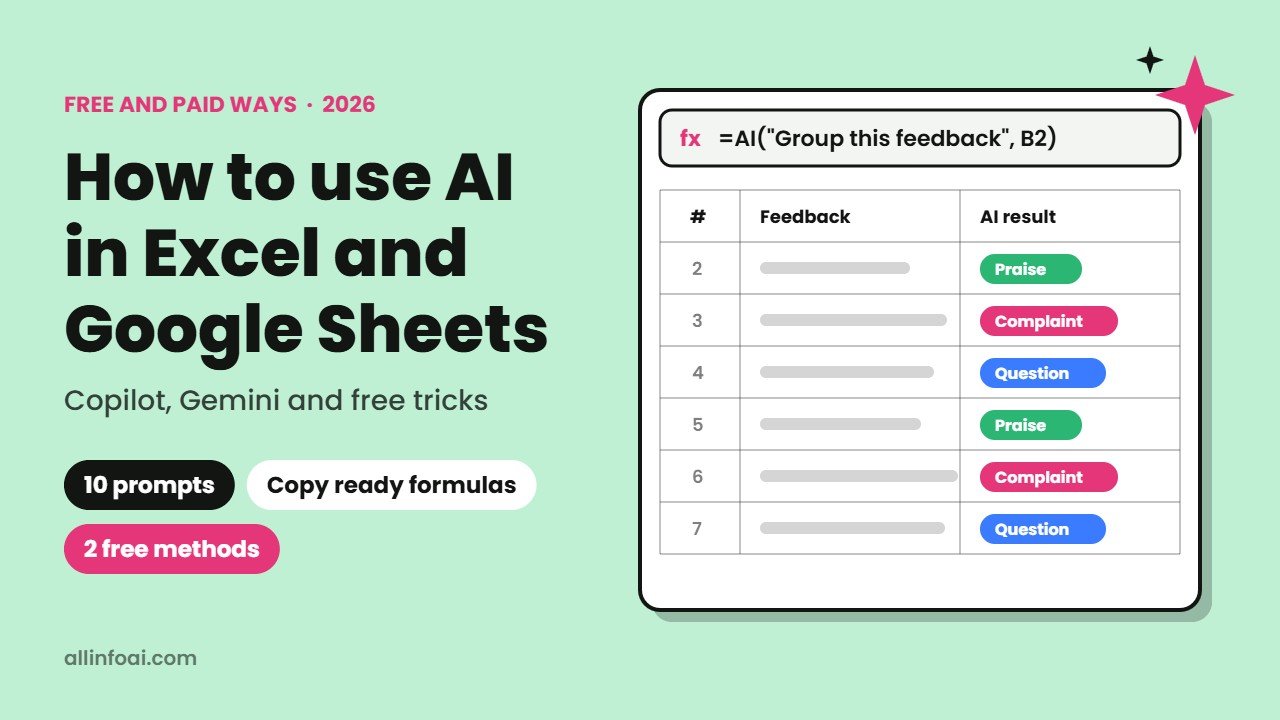
Using AI in Excel and Google Sheets can save you hours every week. For example, it can write formulas for you, clean messy data, sort customer feedback into groups and explain trends in plain English. However, the options changed a lot in 2026, and many older guides are now out of date.
Below, you will learn every practical way to use AI in Excel and Google Sheets today, including two completely free methods. In addition, you will get ready to use prompts and formulas that you can copy into your own sheets.
Quick answer: In Excel, use Copilot in Excel (included with Microsoft 365 Premium and some other plans). In Google Sheets, use Gemini and the =AI() function (needs an eligible Google Workspace or Google AI plan). For a free option in both, ask a free chatbot such as ChatGPT, Gemini or Claude to write formulas for you, or upload a CSV file and ask it to analyse the data.
Ways to use AI in Excel and Google Sheets
| Method | Works in | Cost | Best for |
|---|---|---|---|
| Copilot in Excel (Edit, Plan and Chat) | Excel | Paid plan | Building tables, charts and analysis inside your workbook |
| Gemini side panel | Google Sheets | Paid plan | Creating tables and asking questions about your sheet |
| =AI() function | Google Sheets | Paid plan | Summarising, sorting and writing text cell by cell |
| Chatbot formula helper | Both | Free | Writing and fixing formulas |
| Upload a CSV to a chatbot | Both | Free with limits | One off analysis and charts |
Important change: Excel’s COPILOT function is gone
For example, if you read an older tutorial, you may see a formula like =COPILOT(“Summarise this”, A2:A20). However, Microsoft retired that function on 14 September 2026. Instead, Microsoft now points users to Copilot in Excel, which works in a side panel and can edit the whole workbook. As a result, skip any guide that still teaches the old function.
How to use AI in Excel with Copilot
Today, the main way to use AI in Excel is Copilot, Microsoft’s assistant inside the spreadsheet. Because it started life as “Agent Mode”, it can now plan a multi step task and then carry it out for you, such as building a summary table, adding formulas and creating a chart.
Which plans include AI in Excel (Copilot)?
Specifically, according to Microsoft, you can use it with:
- Microsoft 365 Premium (for individuals)
- Microsoft 365 Personal or Family with an AI credits plan
- A Microsoft 365 Copilot business licence
- Eligible business plans that include Copilot Chat (with lower priority at busy times)
Also, availability can vary by country, so check your account if you do not see it.
The three modes
- Edit: the default mode. You describe the task, and Copilot makes the changes directly. You can press Stop at any time.
- Plan: Copilot first shows its plan, and then you approve it before anything changes.
- Chat: Copilot answers questions about your data without touching the workbook.
Step by step
- First, open your workbook in Excel for Windows, Mac or the web.
- Next, click the Copilot button on the Home tab to open the side panel.
- Then choose Edit, Plan or Chat.
- After that, type what you want in plain English, for example “Create a pivot table of sales by region and month, then add a column chart.”
- Finally, review the result. Check a few numbers by hand before you share it.
However, on a phone or tablet, the options are more limited. For instance, iPad supports Chat and Plan, while Android supports Chat only.
How to use AI in Google Sheets with Gemini
Similarly, Google offers two main AI tools in Sheets: the Gemini side panel and the =AI() function. However, both need an eligible Google Workspace or Google AI plan.
The Gemini side panel
First, click the Gemini button (the star icon) at the top right of Google Sheets. After that, you can ask it to create a table, fill in data, write a formula or explain what your numbers show. For example, try “Create a monthly budget table for a small cafe” or “Which product had the biggest growth this quarter?”
The =AI() function
In short, the AI function works like a normal formula, but it sends a prompt to Gemini. For reference, here is the syntax:
=AI(“your prompt”, optional range)
Alternatively, you can type =Gemini() instead of =AI(). Below are some useful examples:
- =AI(“Summarise this review in 8 words”, B2)
- =AI(“Classify this message as complaint, question or praise”, C2)
- =AI(“Write a friendly product title under 60 characters”, D2)
To run it, first type the formula, select the cells, and then click Generate and insert. After that, you can drag it down a column like any other formula.
Limits of the AI function
- It returns text only, not charts or numbers you should trust for maths.
- It only sees the range you give it, not the whole spreadsheet.
- Only the first 350 selected cells with AI functions are generated at once.
- There are short term and daily limits, and if you hit the daily limit you must wait 24 hours.
- You cannot place it inside another function, such as IF.
Free method 1: get AI in Excel and Sheets from a chatbot
Fortunately, you do not need a paid plan to get AI help in Excel or Sheets. Instead, simply describe your sheet to a free chatbot and ask for a formula. In fact, this is also the fastest way to learn spreadsheet skills.
For example, here is a simple prompt pattern you can copy:
“I use Google Sheets. Column A has customer names, column B has the country and column C has order totals. Write a formula that adds up order totals for India only, and explain it in simple words.”
Then the chatbot should reply with something like:
=SUMIFS(C:C, B:B, “India”)
Next, paste it into your sheet and test it on a few rows you already know the answer to. Besides that, here are more formulas AI can help you build:
| Task | Example formula |
|---|---|
| Find a price by product name | =XLOOKUP(E2, A:A, C:C) |
| Count orders over 1,000 | =COUNTIF(C:C, “>1000”) |
| Clean extra spaces | =TRIM(A2) |
| Fix name capitals | =PROPER(A2) |
| Join first and last name | =A2 & ” ” & B2 |
| Average sales by region | =AVERAGEIF(B:B, “North”, C:C) |
Free method 2: upload a CSV and ask questions
Nowadays, most chatbots can read spreadsheet files. Therefore, you can export your sheet as a CSV file, upload it and ask questions such as:
- “What are the top 5 products by revenue?”
- “Show monthly sales as a line chart.”
- “Which customers have not ordered in 90 days?”
However, free plans usually have daily limits on file uploads, so keep files small. In addition, remove private details first, such as phone numbers or addresses. For a deeper walkthrough, however, read our guide on how to use AI for data analysis.
10 practical prompts for AI in Excel and Sheets
- “Clean this table: remove duplicates, fix capital letters and trim spaces.”
- “Add a column that labels each order as Small, Medium or Large by value.”
- “Create a pivot table of revenue by month and category.”
- “Highlight rows where the due date has passed.”
- “Summarise these 200 survey comments into the top 5 themes.”
- “Build a chart that compares this year with last year.”
- “Explain what this formula does in simple words.”
- “Find the error in this formula and fix it.”
- “Forecast the next three months of sales from this data.”
- “Create a weekly study planner table for exams in December.”
Also, for forecasting in particular, our guide to predictive AI shows a five minute FORECAST example you can build yourself.
Tips to get accurate results from AI in Excel and Sheets
- Check the maths: Microsoft itself advised against using its AI function instead of normal functions like SUM or AVERAGE for calculations. So use AI to build formulas, but let the formulas do the maths.
- Be specific: name the columns, the sheet and the exact output you want.
- Freeze AI text: AI results can change when they refresh. Therefore, copy and paste as values once you are happy.
- Protect private data: avoid sending personal or confidential data to any AI tool unless your company allows it. For example, Microsoft said prompts sent to its former COPILOT function were not used to train its models, but your own rules still apply.
- Keep a backup: save a copy before letting AI edit a whole workbook.
Which way to use AI in Excel or Sheets is best for you?
- Students and beginners: start with a free chatbot to write formulas, and pair it with NotebookLM for study notes.
- Small business owners: if you already pay for Microsoft 365, using AI in Excel through Copilot is worth trying for reports and charts.
- Google Workspace teams: use the Gemini side panel and the =AI() function for sorting feedback and writing product text.
- Data heavy work: combine AI with proper tools, and see our list of free AI tools for data analysis.
Frequently asked questions
Is there free AI in Excel?
Yes, in a way. Built in AI in Excel needs a paid plan, but you can use free chatbots such as ChatGPT, Gemini or Claude to write formulas and analyse uploaded CSV files.
Does the COPILOT function still work in Excel?
No. Unfortunately, Microsoft retired the COPILOT function on 14 September 2026. Instead, use Copilot in Excel from the side panel.
How do I use the AI function in Google Sheets?
First, type =AI(“your prompt”, range) in a cell, select it, and then click Generate and insert. Remember, you need an eligible Google Workspace or Google AI plan.
Can AI create formulas in Excel and Google Sheets?
Yes. In fact, all the main AI tools can write formulas from a plain English description. Still, always test a new formula on rows where you already know the answer.
Is AI in spreadsheets accurate?
Overall, it is helpful but not perfect. For instance, AI can misread data or give a wrong number, so check important results and use regular functions for calculations.
Is my data safe when I use AI in Excel?
Microsoft has said that prompts sent to its Excel AI function were not used to train its models. Even so, follow your company’s data rules and avoid uploading sensitive personal data to free chatbots.
Final thoughts
All in all, AI in Excel and Google Sheets is now practical for everyday work. First, start with the free method today: ask a chatbot to write one formula you need. Then, if you already pay for Microsoft 365 or Google Workspace, open Copilot or Gemini and let it build your next report. Either way, you will spend less time fighting spreadsheets and more time using the answers.
Sources: Microsoft support: COPILOT function, Microsoft Excel blog: Agent Mode in Excel, Google support: Use the AI function in Google Sheets, Windows Forum explainer on Copilot in Excel plans. Details as of 14 October 2026.