
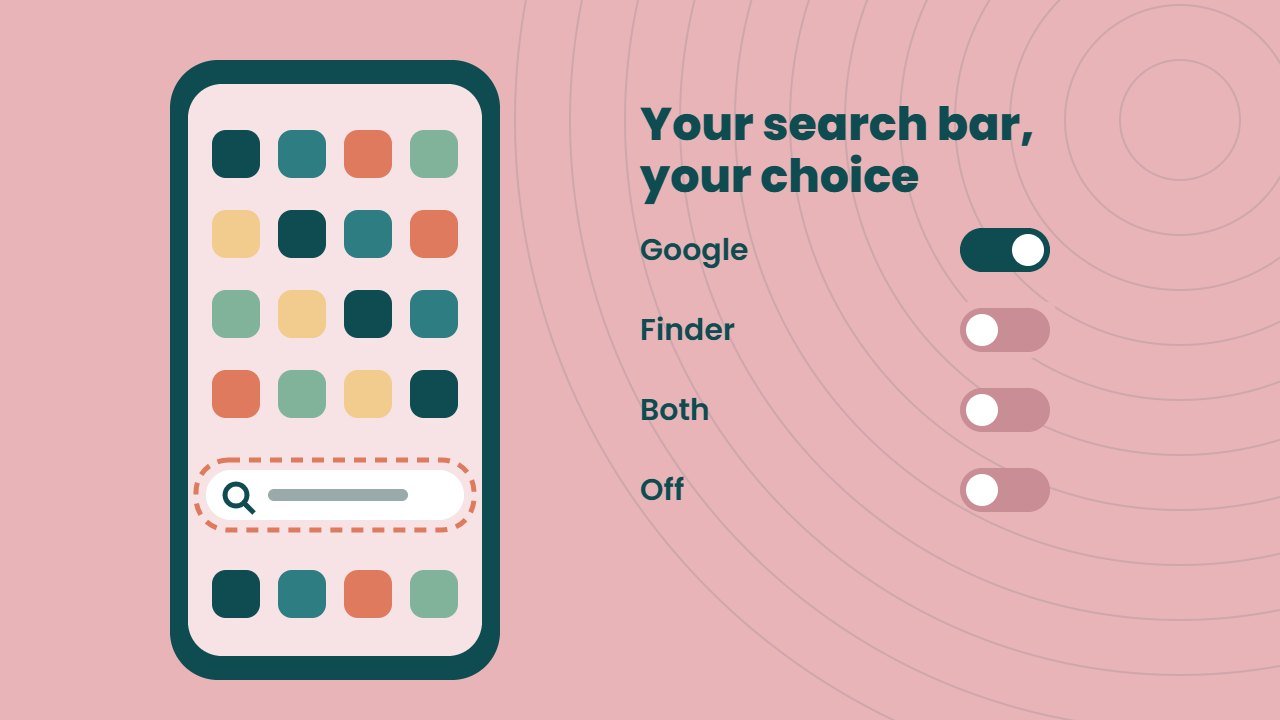
If your Samsung Galaxy phone just updated to One UI 9, you may have noticed a new search bar sitting on your home screen, just above the dock. Many owners like it. Others find it takes space or opens Google when they wanted to find an app. The good news is that you can change it or remove it in a few taps.
This guide explains what the One UI 9 search bar is, which phones have it and how to set it up the way you want. It also covers Samsung Finder, the on device search option that many people never try.
Quick answer: One UI 9 adds a search strip between the app grid and the dock. It uses Google Search by default, but you can switch it to Samsung Finder, show both, or turn it off. Long press an empty spot on the home screen, open the home screen settings and change the search bar option. If you turn it off, the page dots come back in its place.
What is the One UI 9 search bar?
One UI 9 is Samsung’s Android 17 based update. One of its most visible changes is a dedicated search row on the home screen. It sits between your apps and the dock, so it does not take any space from your icon grid.
In the past, Google Search on a Galaxy home screen was a widget. It used a full row of the grid, and you could move it or delete it like any other widget. In contrast, the new One UI 9 search bar is part of the home screen layout itself, so you control it from settings instead.
The bar first appeared on the Galaxy Z Fold 8, Z Fold 8 Ultra and Z Flip 8, which Samsung unveiled in July 2026 with One UI 9 on board, as 9to5Google reported. Other Galaxy phones get it when the One UI 9 update reaches them.
Which phones get the One UI 9 search bar?
Any Galaxy phone that installs One UI 9 should get the new search row. Samsung started with its new foldables in summer 2026 and reached the Galaxy S26 in late September. Older models come later.
To see if your phone qualifies and when it may arrive, read our One UI 9 update guide. You can also check your phone now under Settings, Software update, Download and install.
Your four search bar choices
Samsung gives you four simple options for the One UI 9 search bar:
| Option | What it does | Best for |
|---|---|---|
| Google Search (default) | Searches the web with Google | People who search the web a lot |
| Finder | Searches your phone: apps, settings, files and contacts | People who mainly look for apps or settings |
| Both | Shows Google and Finder side by side | People who want both in one place |
| Off | Removes the bar and brings back the page dots | People who want a clean home screen |
Interestingly, this gives Galaxy owners more control than the Pixel Launcher has long offered.
How to remove the One UI 9 search bar
Follow these steps to turn it off. Menu names can change slightly between models and regions, so look for similar words if yours differ.
- Go to your home screen.
- Long press an empty area until the edit view opens.
- Tap Settings to open the home screen settings.
- Tap Show search on Home screen.
- Choose Off.
- Go back to the home screen. The search row is gone, and the page dots return.
If you change your mind, repeat the same steps and switch it back on.
How to switch the search bar to Samsung Finder
Finder is Samsung’s own search tool. It runs on your phone and looks through apps, settings, files, contacts and more. For example, typing “battery” can take you straight to battery settings, which is faster than digging through menus.
To use it instead of Google:
- Long press an empty spot on the home screen.
- Tap Settings.
- Tap Show search on Home screen.
- Choose Finder only, or Google Search + Finder if you still want Google next to it.
Because Finder searches your device, it is handy for people who often hunt for apps or settings. Meanwhile, the Google option is better for quick web searches.
Free: AI Tools Cheat Sheet 2026
24 free tools sorted by task, a simple prompt formula and 10 prompts you can copy. We send the PDF straight to your inbox.
Sent! Check your inbox
We emailed the AI Tools Cheat Sheet to you. Not there in 2 minutes? Look in Spam or Promotions.
Why did Samsung add the search bar?
Samsung has not explained the change in detail. However, the result is clear. Updated phones show a Google search box by default unless the owner changes it. That means more people will search the web from their home screen, which benefits Google, Samsung’s long time search partner.
On the other hand, Samsung deserves credit for adding a real off switch and its own Finder option. You stay in control of your home screen.
Tips for a cleaner One UI 9 home screen
Once you have set the search bar, a few more tweaks can help:
- Use Finder if you often search for settings, since it finds them faster than scrolling.
- Keep your most used apps in the dock, so you rarely need search at all.
- Try the Galaxy AI features in One UI 9, such as Now Brief, which can show useful info without opening apps.
- If you also see an odd Google Play system update date of January 2027, do not worry. Our guide to the Google Play system update explains why.
Thinking about a new foldable with One UI 9 built in? Our Fold 8 vs iPhone Duo comparison can help you choose. You can also read about the wider Android 17 update.
Final thoughts
The One UI 9 search bar is a small change that you see every day. Some people will love having Google one tap away, while others will prefer Finder or a clean screen. Either way, it takes less than a minute to set it up. Long press your home screen, open settings and pick the option that suits you.
FAQ
Can I remove the One UI 9 search bar?
Yes. Long press an empty spot on the home screen, tap Settings, then Show search on Home screen, and choose Off. The page dots come back in its place.
What is Samsung Finder in One UI 9?
Finder is Samsung’s on device search. It looks through your apps, settings, files and contacts rather than the web.
Does the search bar take space from my apps?
No. It sits in its own row between the app grid and the dock, so your icon grid stays the same size.
Which phones have the new search bar?
It started on the Galaxy Z Fold 8, Z Fold 8 Ultra and Z Flip 8. Other Galaxy phones get it with the One UI 9 update.